
How to watermark photos on iPhone
For one or two photos, the built-in Photos app is enough. To put the same watermark on a whole set, a batch tool saves a lot of time.

Pick a method
The difference comes down to how many photos you have and how consistent the mark must be.
- One or two photos with simple text: use Markup in the Photos app. It is free and built in.
- A set that needs the same position, font, and opacity, or a logo: use a batch watermark app.
Method 1: add text with the Photos app
Button positions vary slightly between iOS versions.
- Open the photoOpen the photo in the Photos app and tap Edit.
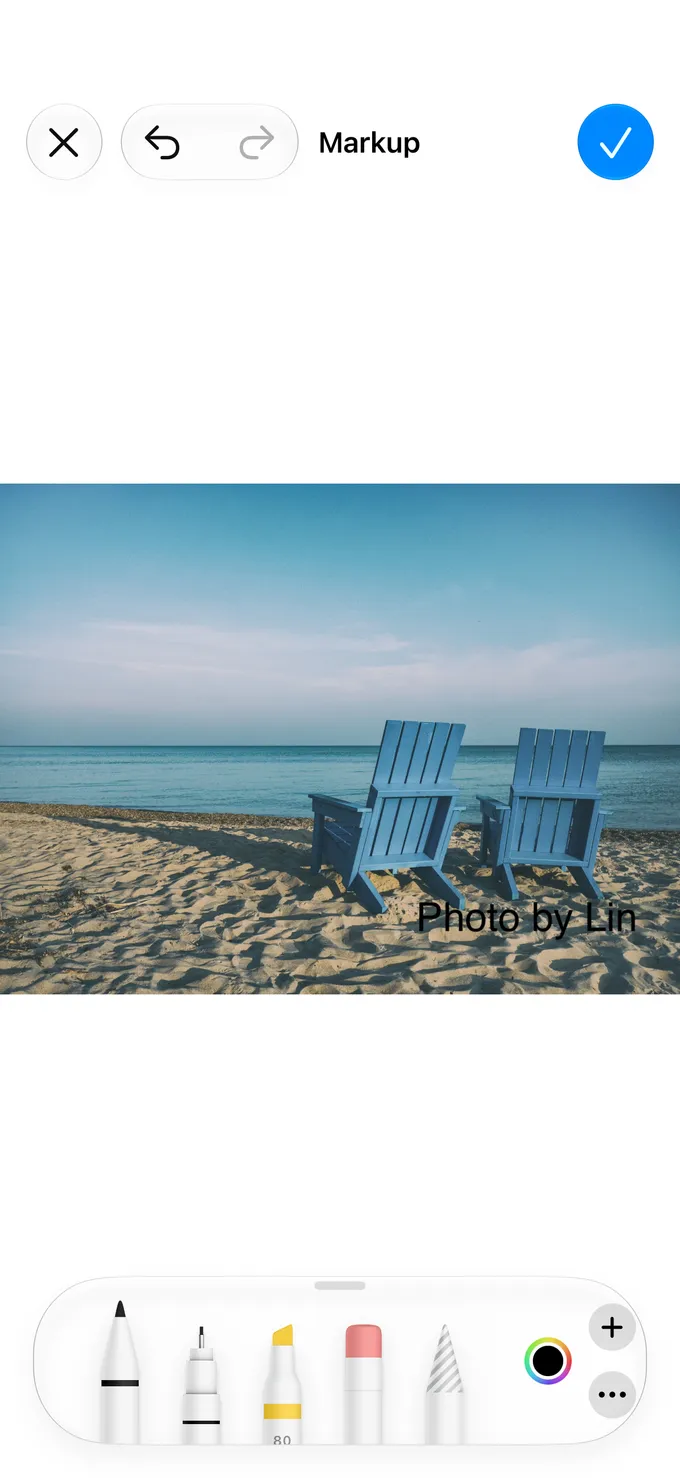
- Open MarkupTap ⋯ at the top and choose Markup (older iOS shows a pen-tip icon). Tap the pen to open the full palette, tap +, then choose Add Text.
- Type and placeType your watermark, drag it into place, adjust size and color, and tap Done.
Method 2: batch watermark with BatchMark
- Select photosOpen BatchMark and pick the set from your library, up to 100 photos per batch with Pro.
- Set the watermarkChoose text or a logo and adjust position, size, opacity, font, and spacing. Save settings you reuse as a template.
- ExportExport the whole set; every photo gets the same mark in the same place.
Questions
Can iPhone batch watermark photos on its own?
Markup in the Photos app edits one photo at a time. To put the same watermark on a set, you need a batch watermark app.
Does watermarking change the original?
Edits in the Photos app can be reverted anytime. BatchMark exports finished copies, and your originals stay in the library.
Text or logo?
A name or handle is enough for personal work. A logo makes product photos and client proofs easier to recognise as yours.